At Kennesaw State University, we value fairness in the grading process. You have the right to submit a formal grade appeal if you believe a final course grade has been assigned in error or unfairly. The process outlined below ensures that any grade-related concerns are thoroughly reviewed based on specific criteria outlined in KSU’s Grade Appeal Policy.
We’re committed to ensuring your concerns are heard and addressed properly, whether you believe a grading policy was violated or a miscalculation occurred.
Kennesaw State University is committed to treating students fairly in the grading
process. A student may appeal a final grade awarded for a course. Interim grades or
grades on specific assignments are not appealable. An appeal must be based on one
or more of the following:
An allegation that the faculty member has violated the stated grading policy,
An allegation that the faculty member assigned a grade using a different standard
than was used with other students in the same course.
An allegation that the grade was miscalculated.
The student has the burden of proving these allegations. All formal appeals under
these procedures will be based only on the written record.
This process does not address academic integrity allegations, faculty misconduct,
or discrimination/retaliation. If the student alleges their grade is based on discrimination
or retaliation because of their membership in a protected class, the student may file
a complaint with the Office of Institutional Equity (OIE).
PLEASE NOTE: Complaints filed with the OIE are independent of the grade appeal process and are
not reviewed by OIE as an appeal of a grade. If an OIE complaint is filed, the grade
will remain the final grade and cannot be changed based on OIE authority. However,
upon receiving a finding from the OIE as to whether there is a violation, the Dean
may determine whether a change of grade is warranted.
A complaint filed with the OIE and a Formal Grade Appeal may be filed concurrently.
Filing a complaint of discrimination/retaliation with the OIE regarding a grade does
not change the time requirements for filing a grade appeal based on this policy.
How to Submit a Grade Appeal
Beginning in Fall 2024, the grade appeals process will be created in Owl Express.
Grade appeals can be submitted for a course from the day after grades are posted for
the semester until the 20th business day of the following semester. If your grade
appeal is approved, the grade change process will be initiated automatically. If your
grade appeal is denied, you will have 20 days from the date of the decision to appeal
the denial.
Follow These Step by Step Instructions to Submit a Grade Appeal
Log in to Owl Express
Log in to Owl Express and Select the Student Records tab.
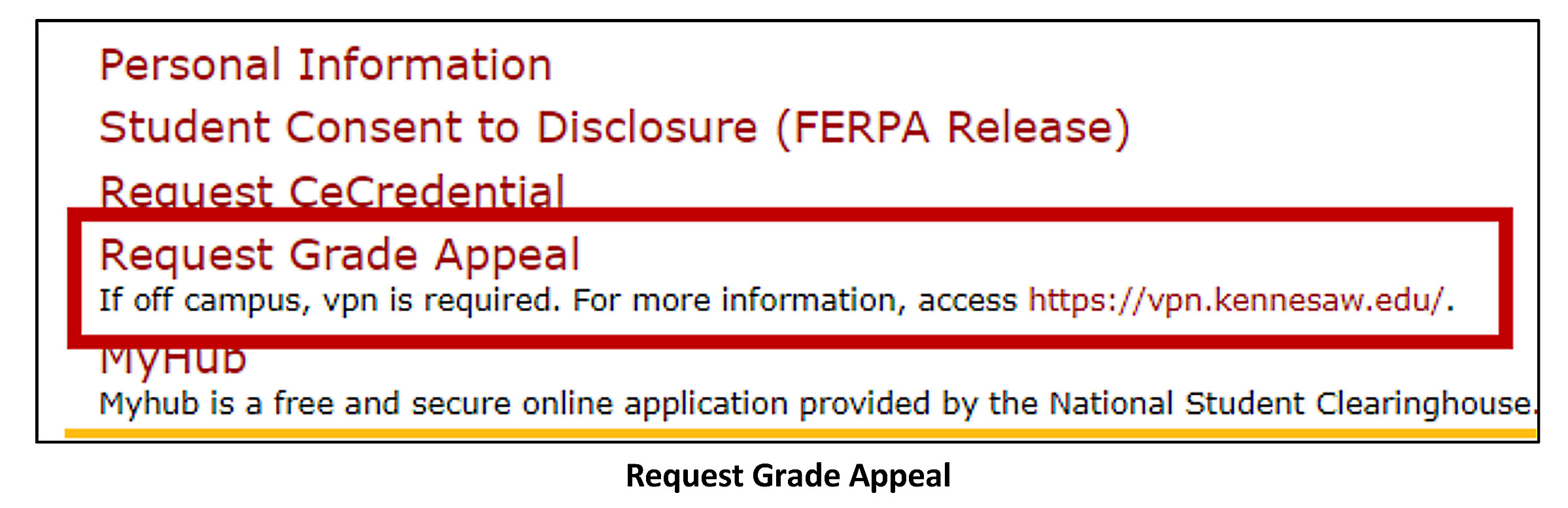
Select Request Grade Appeal
Note: To begin the Grade Appeal process, you must connect to the campus network or, if your
current location is in KSU housing or off campus, you must connect to the KSU virtual
private network (VPN) using GlobalProtect. To connect to the VPN, follow the steps
outlined on https://campus.kennesaw.edu/offices-services/uits/security/vpn.php to download GlobalProtect and log in.
This ensures the security of your data!
Log in to Grade Appeal
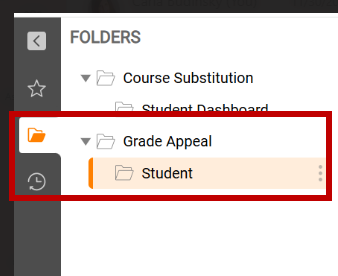
On the left menu, expand the Grade Appeal folder, then click Student. The dashboard
will load.
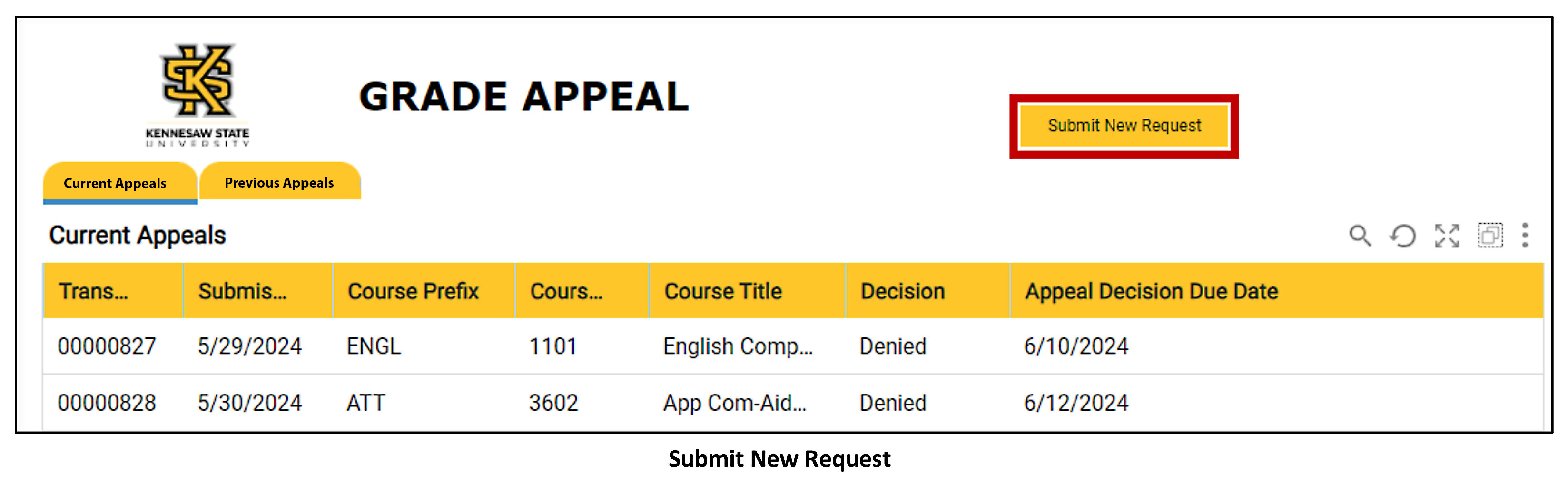
Grade Appeal Dashboard
On the Grade Appeal dashboard, select Submit New Request.
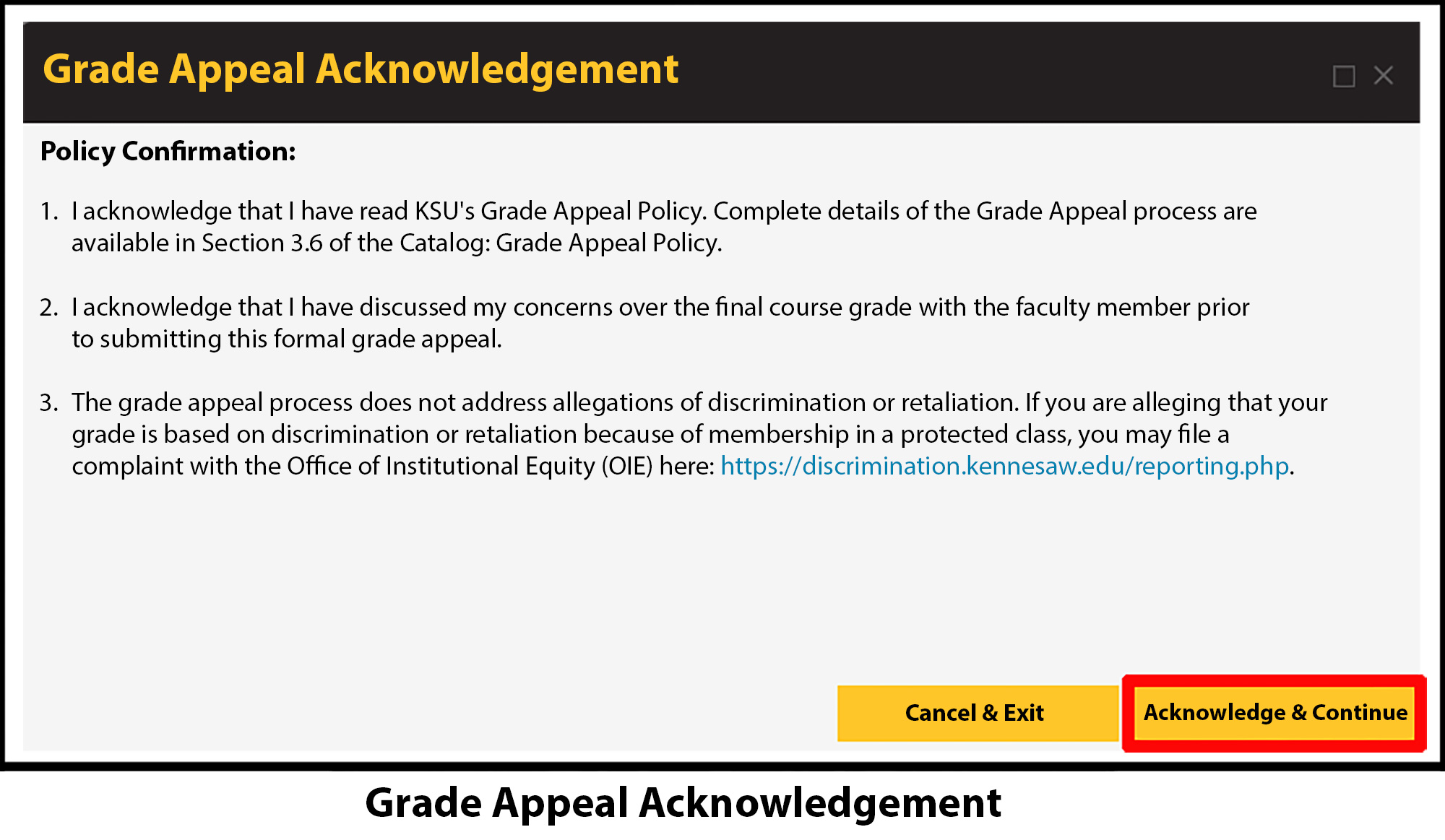
Acknowledgement
The Grade Appeal Acknowledgement box appears. Read the acknowledgements, then select Acknowledge & Continue.
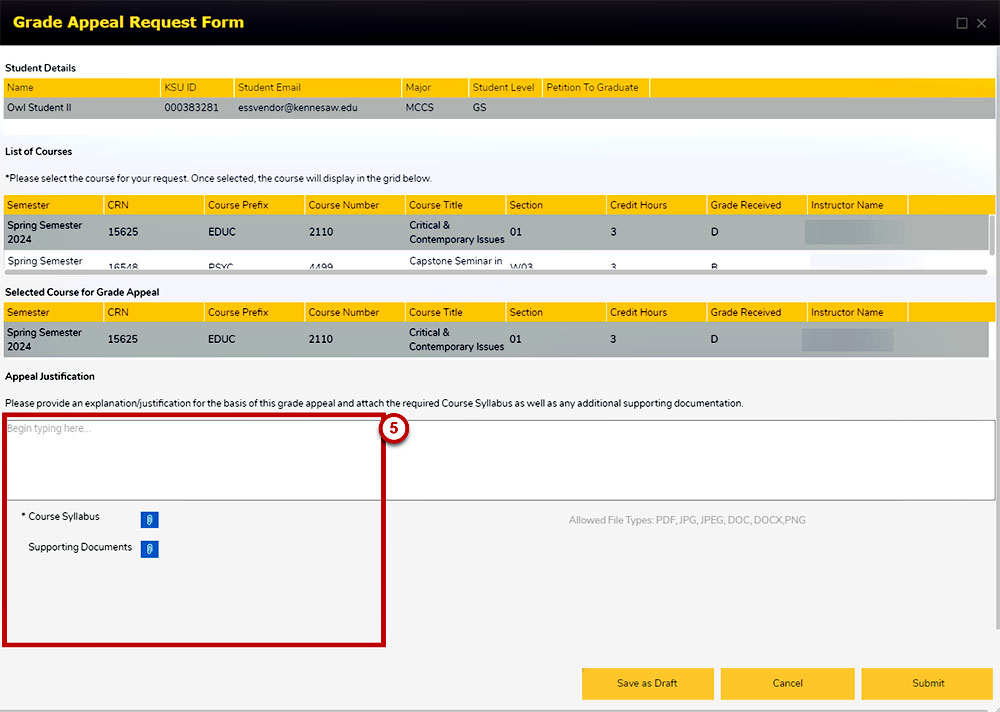
Grade Appeal Request Form
On the Grade Appeal Request form, select the course for which you would like to submit
the grade appeal form. You are required to enter a justification for your appeal and
upload the course syllabus. You may upload additional supporting documentation; however,
this is not mandatory.
NOTE: PDF file type is preferred.
NOTE: Once the appeal has been submitted, supporting documents will be visible to those
with access and cannot be deleted.
When Finished
When finished, select one of the following:
Save as Draft to save your appeal without submitting.
Cancel to exit the appeal form without submitting.
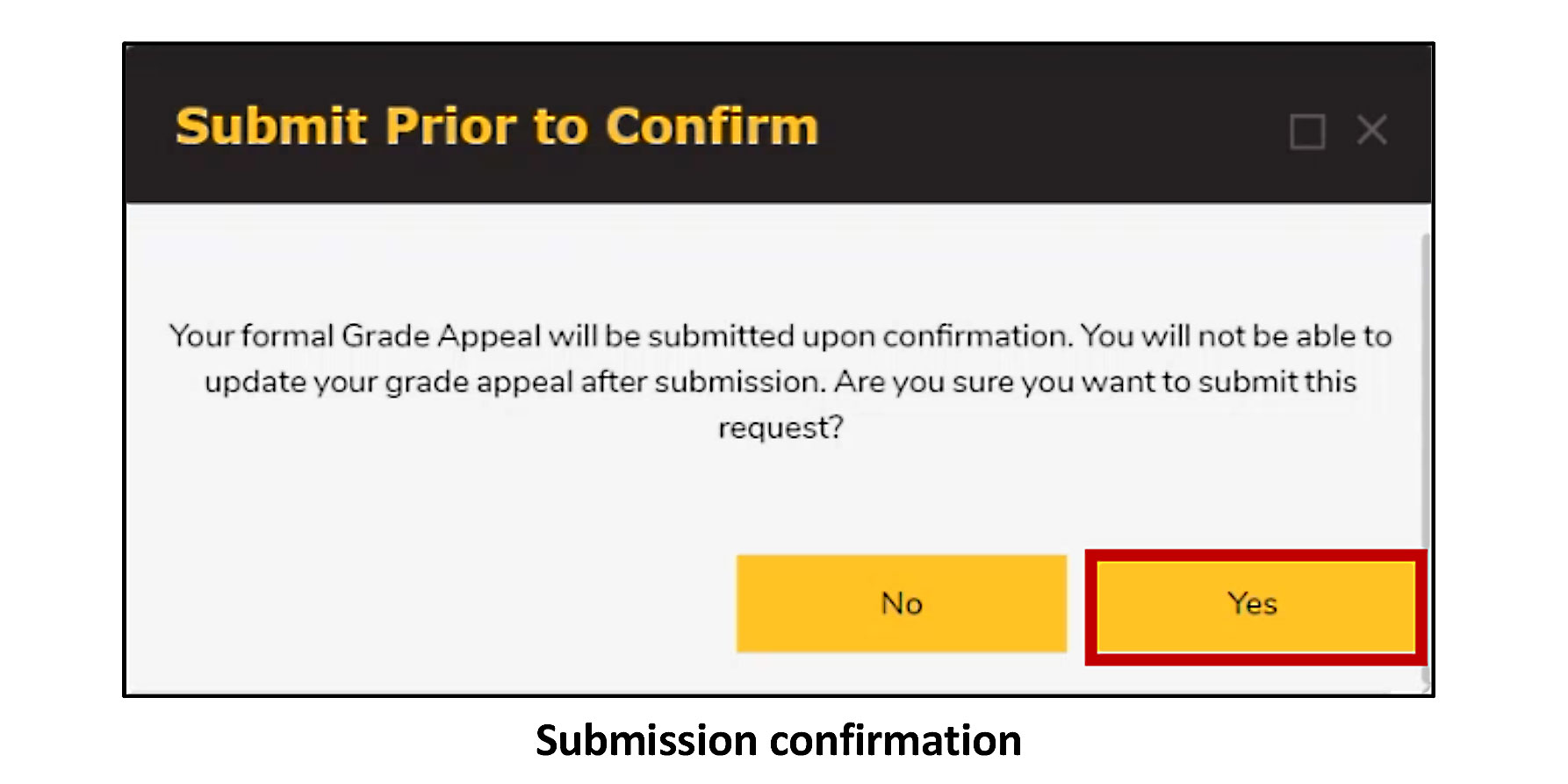
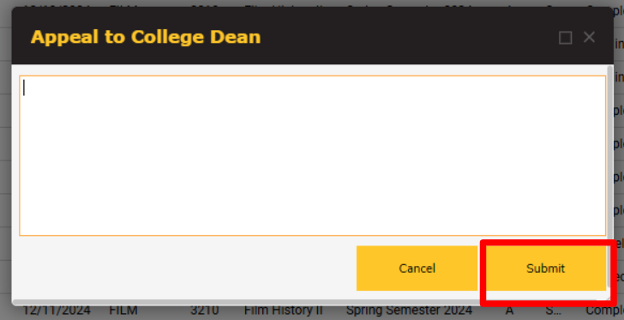
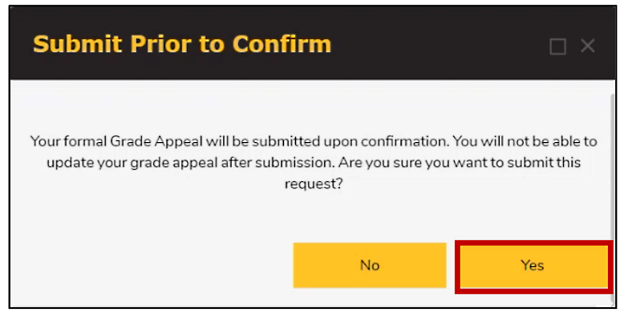
Submit to submit your appeal for review. You will be prompted to confirm your submission.
Select Yes to submit your appeal.
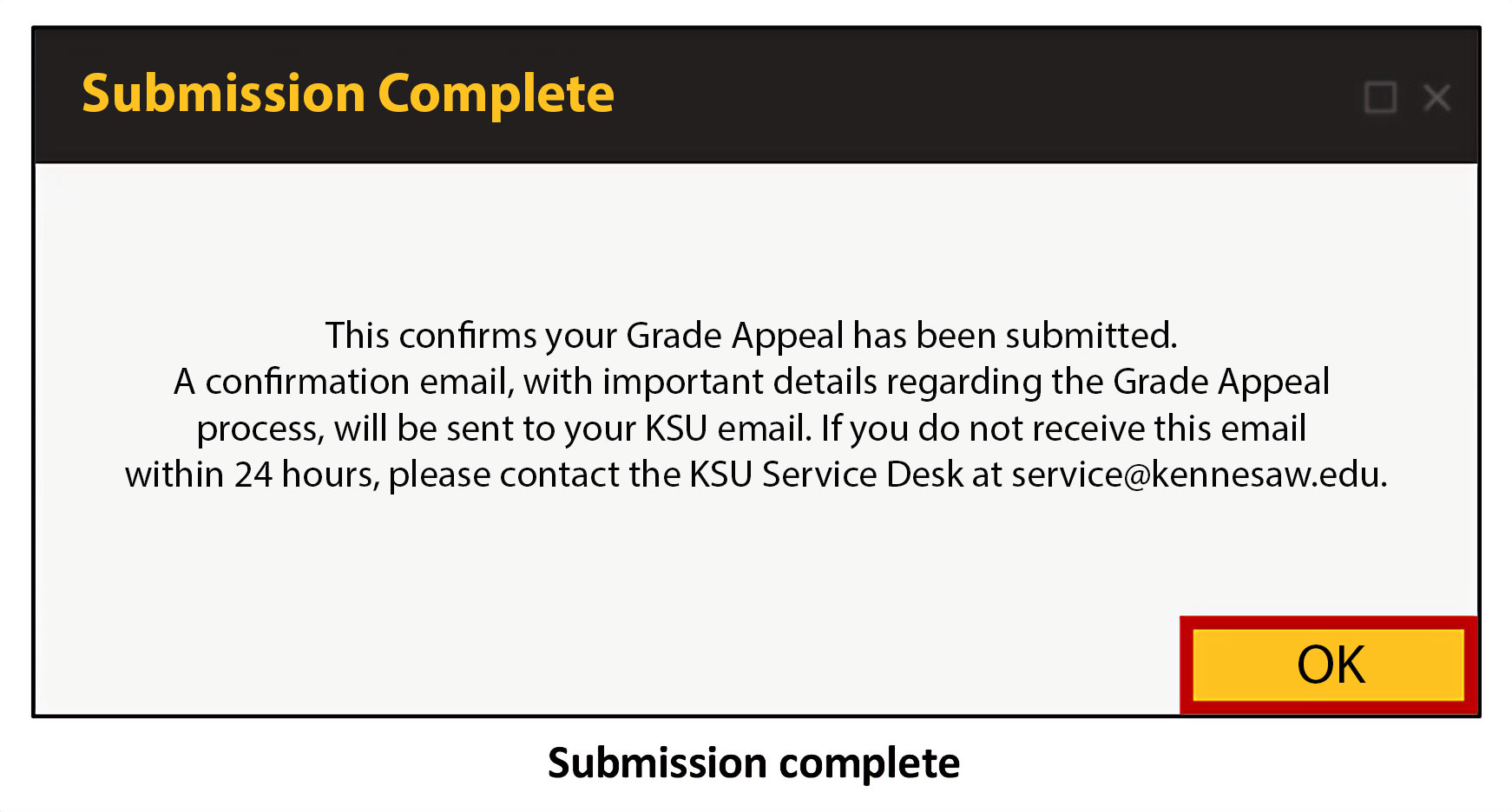
A submission complete window will display.
Your Appeal will be Listed on the Grade Appeals Dashboard
Your appeal will be listed on the Grade Appeals dashboard with the status Pending
Department Chair Decision.
To review your appeal submission, select the transaction number.
Appeal Denied Decision
Your appeal will be listed on the Grade Appeals dashboard with the status of Pending
Student Appeal DC.
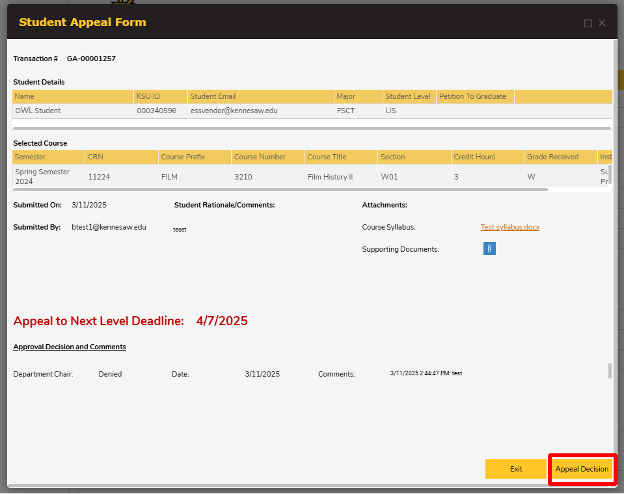
To Appeal the Decision, right click anywhere on the row, and click Appeal Decision.
On the Student Appeal Form you have the option to upload additional documents, Exit,
or Appeal Decision.