KENNESAW, Ga. | Nov 20, 2026
Learn how student workers can help solve accessibility challenges.
In Digital Learning Innovations, we get a lot of requests for help with digital accessibility. We don’t mind—in fact, we love it! It’s what we do and we’re passionate about it.
A few months ago, we received a request from Maxayn Smothers, manager of HR Creative Design, to review a PDF document that her student worker, Tina Akinrolabu, had remediated. Maxayn wanted to make sure she and Tina were on the right track, and we were happy to look it over.
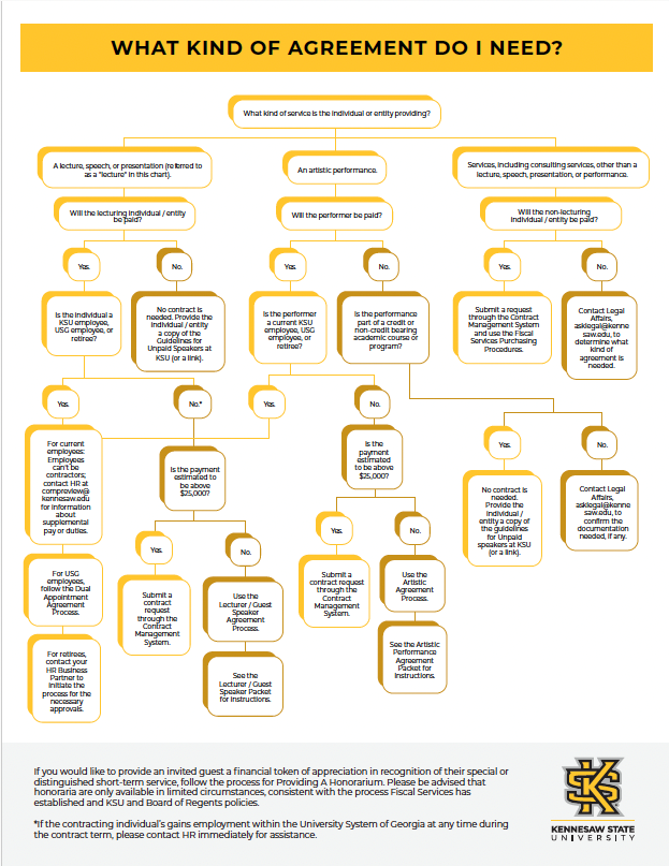
When we first opened the document, we didn’t feel hopeful. It was an extremely complex flow chart, with many branches. This would be difficult to remediate in any platform, much less PDF. Before we opened the tags tree (the hidden layer that tells a screen reader what each element is and what order to read it in), one of us said, “I’m not sure how I would do this.”
If you’re not used to people who get excited about things like a properly set up tag structure in a PDF, this may sound odd! In DLI, we know how much thought and effort this would take.
What we discovered as we reviewed Tina's tag structure was nothing short of brilliant. The simplest things, such as an H1 Header at the top of the document and clear paragraph tags for all the text boxes, were there as we’d expect. What we didn’t expect was the thoughtfulness of the reading order.
Tina had ordered the document’s paragraphs correctly across the three columns. For each “Yes” and “No” branch, she ordered the shorter branch first (because it ended sooner), and then the longer one. A person using a screen reader would hear the question, the first answer and result, and then the second answer and the results.
When we asked Tina how she came up with this, she credited her UX coursework and class
projects designing websites.
“I actually have a lot of experience mapping out decision trees,” she said. “When we were prototyping apps and websites, we’d have to map out where every click leads and draw it out before we actually went into software and built it. When I started to look at it that way, it became a lot easier to solve.”
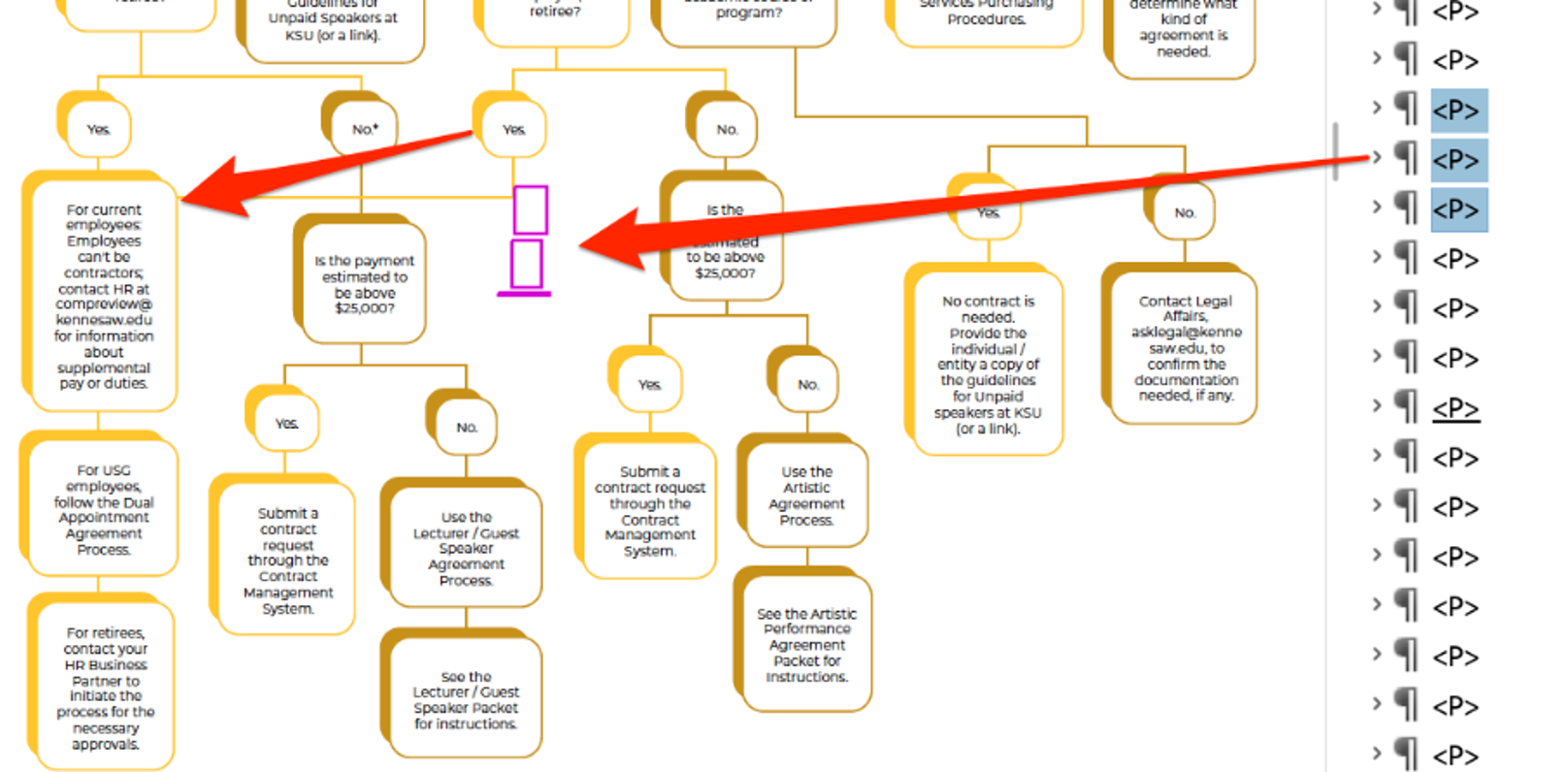
About halfway down the third column, Tina ran into a problem. One decision branch needed to point to a text box that was already ordered earlier in the document. This is where Tina’s brilliance really showed through. Tina created three new text boxes with the same text, shrunk them down, and made the text white so that sighted readers would never see it. A screen reader, however, will recognize that text and read it to the user—we know this, because Tina tested her work with a screen reader throughout the process.
"Every change I made, I would listen to it over and over again and be like, 'Does this make sense?'” Tina said.
We couldn’t believe how thoughtful of a solution that was, and we made sure to let Tina and Maxayn know. We made a couple of suggestions for adding a few more heading levels, so readers could skip sections if they wanted, but that was about it. While it’s still not perfect, we couldn’t think of any ways to make this document more accessible than Tina did on her own.
Based on her experience remediating documents like this one, Tina offered this advice
to anyone who might be intimidated by the digital accessibility work ahead of us:
“Try to zoom in a little bit and focus on smaller parts. Break things down into manageable parts and don’t feel like you have to learn everything all at once. It’s very important to learn if you are interested, and not to feel intimidated by just how much there is, because it is important work.”
Seeing how much Tina has contributed to the digital accessibility in her office (just as a student worker!) we have been inspired to make some big decisions.
First, we decided to open all our training resources (including our workshops) to student workers who assist faculty and support units across campus. We’ve had several come through our accessibility workshops, Accessible Teaching Essentials, and Accessible Web Essentials. Now they’re out helping KSU courses and units become WCAG compliant.
Second, we created a process to allow student workers to have instructor access to the Panorama DocHub, giving them the same access to powerful accessibility tools available to faculty and staff.
Third, we're spreading the word across campus about the value of student workers in all of our WCAG efforts at Kennesaw State. Consider:
If you have student workers, consider training them in digital accessibility. Not
only does it help your digital content reach the entire KSU community, but it also
gives students experience handling the accessibility tools and guidelines that employers
are looking for.
“I think the skills that I've learned will definitely help me with my future work in UI and UX,” Tina said. “I’m already applying it to my personal projects and trying to further build up my portfolio.”