YuJaPanorama is a new accessibility tool for faculty and students that has replaced Anthology Ally. Faculty and students who are used to Ally will find that it functions similarly to Ally, in that it:
Reviews all documents and content in D2L courses, providing faculty with reports and
remediation guidance and
Offers students the option to create accessible alternate formats of content.
However, Panorama doesn't just replace the functionality faculty and students are used to, it expands
it:
Improved course and content reports for faculty
Inline remediation for many common accessibility issues
Faster, easier solutions for PDF remediation
Increased alternate formats for students, including math conversion
A DocHub that extends document accessibility outside of the LMS for staff users as well
Learn more about Panorama with the resources below.
(Note: YuJa has made a few updates after the videos below were recorded. Some things may look slightly different now, but functionality should be unaffected. We'll work on updating our documentation and videos as we can!)
The Panorama Course Report tool can be added to all of your courses in D2L. Until
the Course Report is added to a course, faculty will only see the student view, which
includes the Alternative Formats menu but not the Accessibility Report option. To
ensure you can access this report and remediate your content, follow the steps below.
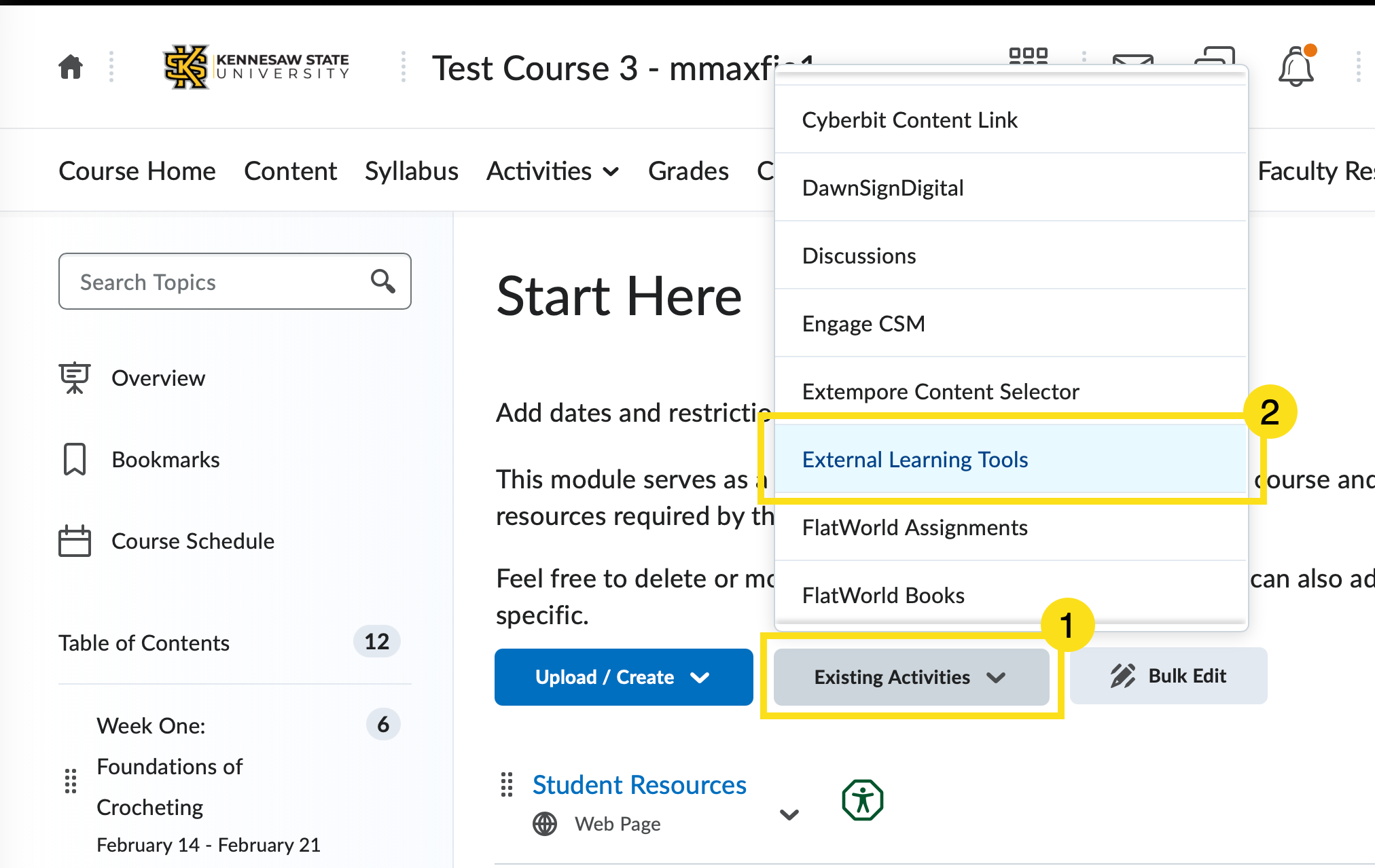
Step One: Add the Course Report
Starting from within a module in your D2L course,
Click the Existing Activities button.
Select the External Learning Tools option from the dropdown menu.
A new window will open. Locate and click the link for Panorama.
The Panorama Course Report will now be displayed at the bottom of the module content.
Follow these steps to add the Panorama Course Report to all of your courses in D2L.
Once you've added the Course Report tool, Panorama will automatically scan any content
you have added to your course (HTML pages, documents, presentations, etc.). You'll
know Panorama is working because you'll see colorful indicators next to your content
titles.
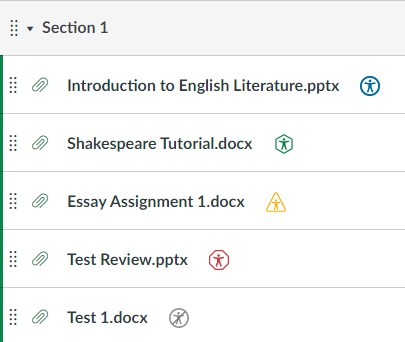
Decoding the Icons
The indicators offer a quick glance at content most in need of remediation. The colors and shapes of the indicators are based on a score Panorama gives the content using AI.
It’s important to see the Panorama color-coded gauge as an indicator of the number and type of issues that Ally detects, rather than a “passing score.”
For instance, while Panorama may be able to see that there is alternative text for images in a file, it won’t be able to tell if that alternative text is a sufficient description for the item—that is something that will need your judgment to determine.
Similarly, an indicator on a PowerPoint file may have a green color because only one
image in the file is lacking alternative text. However, if that image carries a meaning
that is essential for the students to understand, then that alternative text still
needs to be added, regardless of the color.
The indicators offer a quick glance at content most in need of remediation. The colors
and shapes of the indicators are based on a score Panorama gives the content using
AI:
Blue circle icon: Accessibility icon (Student View)
Dark Green octagon icon: Very high accessibility scores
Green hexagon icon: High accessibility scores
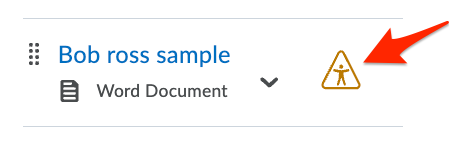
Yellow triangle icon: Medium accessibility scores
Red hexagon icon: Low accessibility scores
Red rounded hexagon icon: Very low accessibility scores
Grey prohibition icon: Your institution has disabled the alternative formats for this document
Purple circle icon: The file is being processed for accessibility
Viewing the Accessibility Report
To begin remediating a document, click the Panorama icon to the right of the item name. The Accessibility Report will open.
Remediating Content
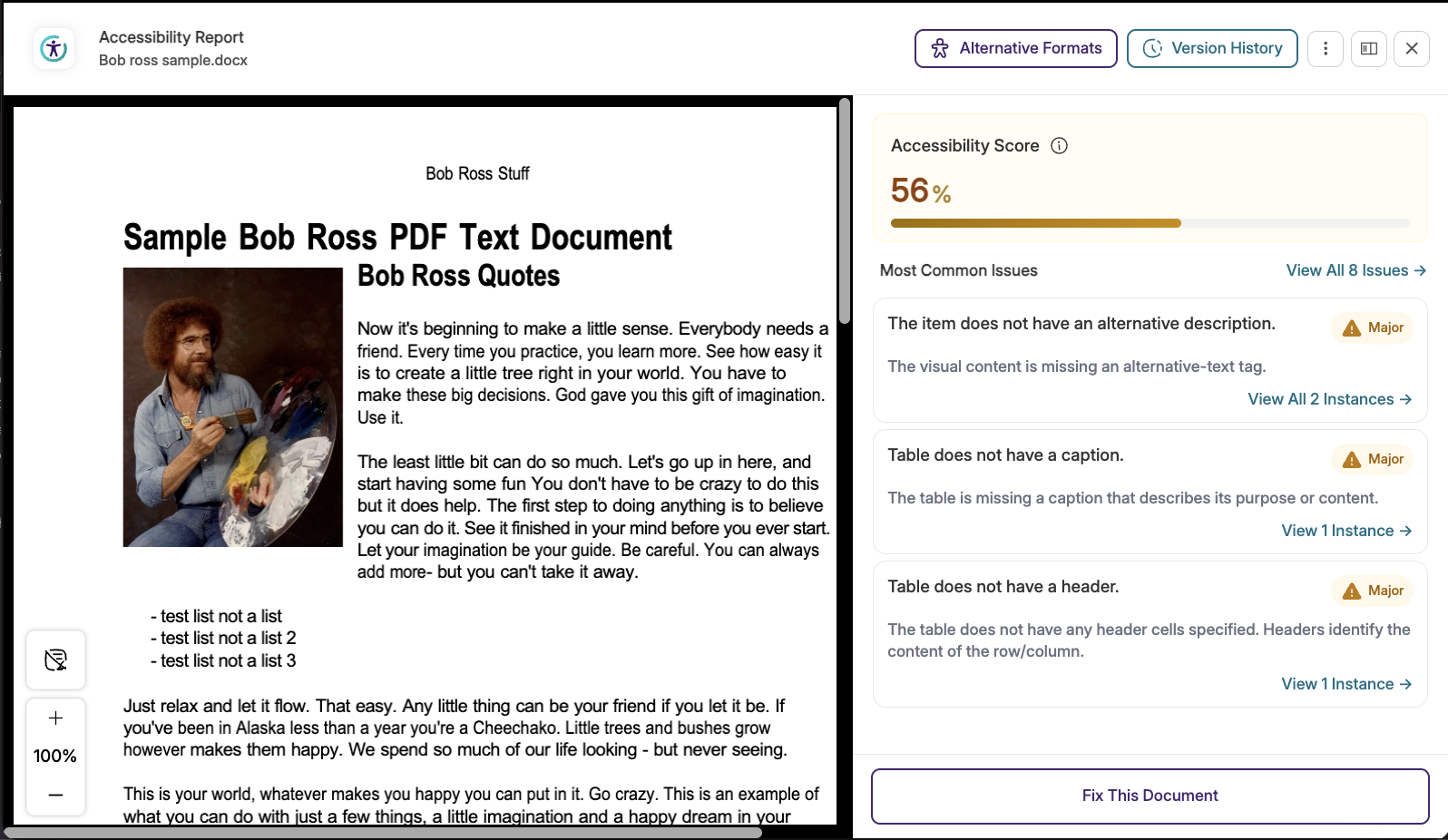
Once you've clicked the Accessibility Report for your document, the document will populate on one side and the report on the other.
The report will detail minor, major, and severe accessibility issues, as well as provide options and instructions for remediation.
The specific steps for remediation will depend on the issues present in the document. In some cases, you will be able to make the changes directly within Panorama; for more severe issues, you may be prompted to make the fixes externally.
When you are finished, be sure to click the Update button at the bottom for the changes to be reflected in your course.
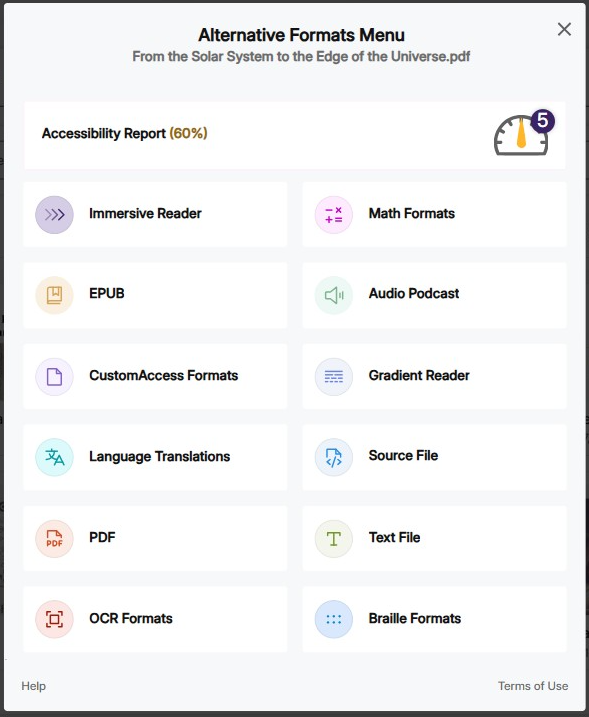
Accessing Alternate Formats
You can also access the Alternative Formats options by clicking the Alternative Formats button at the top of the Accessibility Report.
The Alternative Formats Menu is also available to students and provides both faculty and students the option to
access the content of the file in alternative methods.
You can learn more about how to use the Panorama Alternate formats menu and the Accessibility Report at Panorama's help site. In addition, DLI will be publishing resources and offering support specifically for KSU staff and faculty.
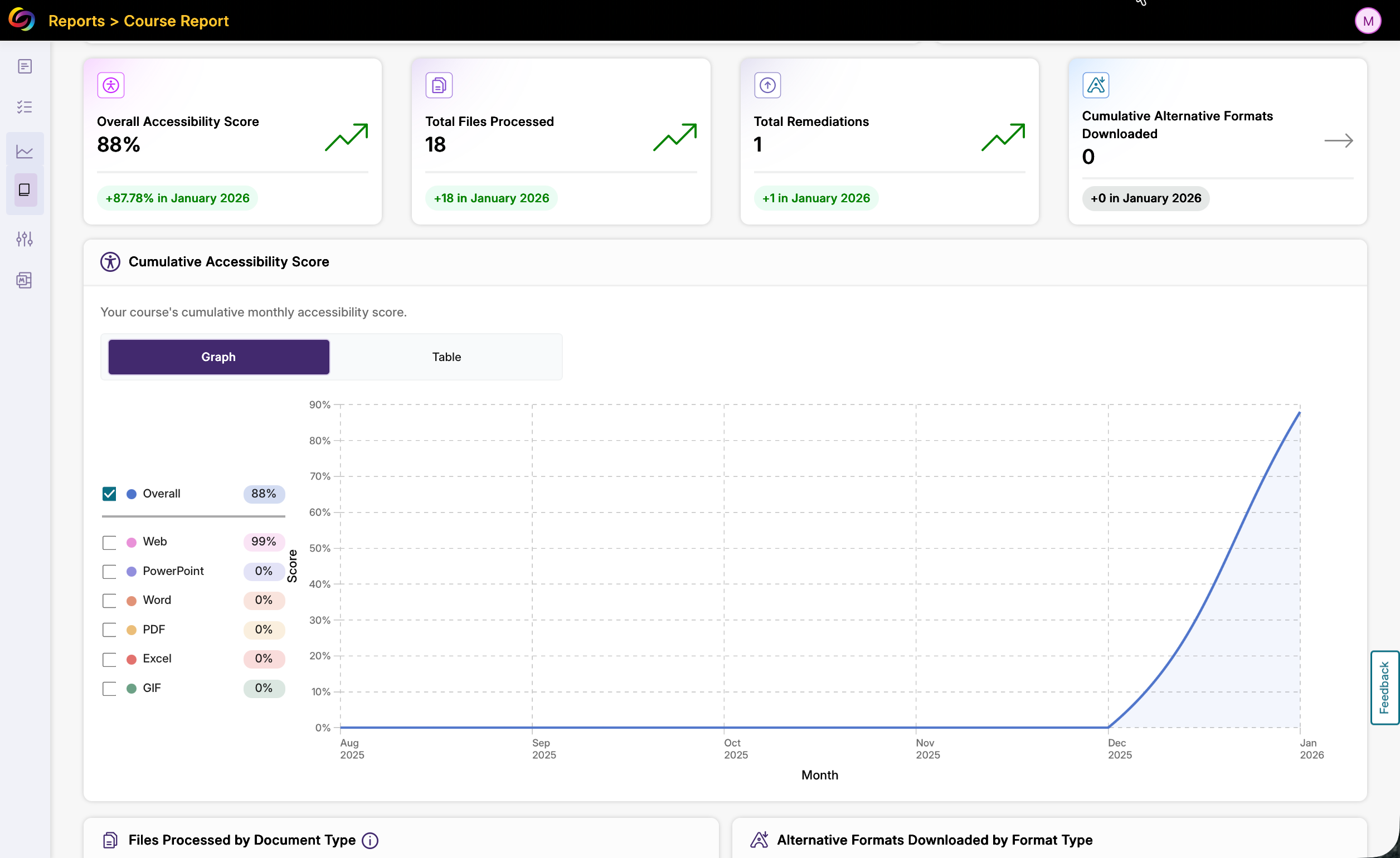
The Panorama Course Report offers a broad overview of accessibility throughout your
course and many options for choosing which content to address or remediate first.
Once added to your course in D2L, clicking the report tool will take you to your own
Panorama hub where you can find reports on all of your courses, a DocHub, and personal
settings options for Panorama.
Navigating the Course Report Tool
The Panorama Course Report includes visualizations that can give you more information
about the overall accessibility of your course, but it can also demonstrate your commitment
to accessibility by showcasing your improvements to the course content over time.
The charts and graphs can also help you identify the types of files in your course
and the ones most in need of remediation.
Switching to a Different Course
Once you have accessed the Panorama Course Report tool, you can view the Course Report
for that current course or use the Switch Course button at the top to see reports
for any of your other courses.
Refreshing the Course Report
You can remediate your files directly in the Course Report or return to your course
in D2L and remediate them there. The Course Report should update and reflect your
changes automatically approximately every 24 hours. If you'd like to refresh the course
report at any point, you can click the Refresh Report link to do so.
Need more help?
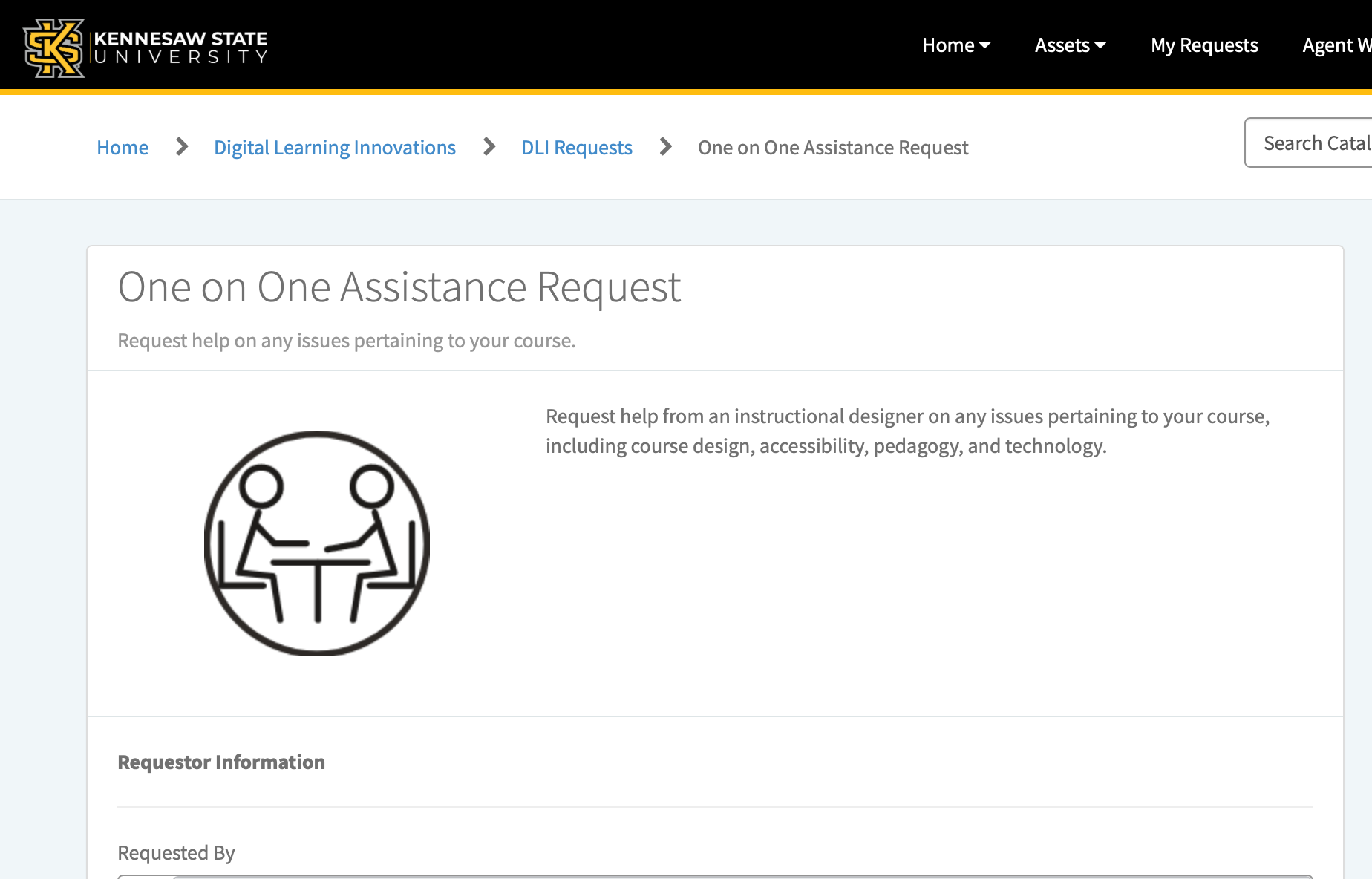
Schedule a 1:1 Session
If you would like general help with using and understanding Panorama, use our One-on-One Help Session form to schedule a meeting with one of the instructional designers on our team.
Access Yuja Help 24/7
If you need help outside of our regular business hours, or if you have a very specific
question about a specific document, you can also access Yuja's help tool anytime to
live chat, call, or email a Yuja representative:
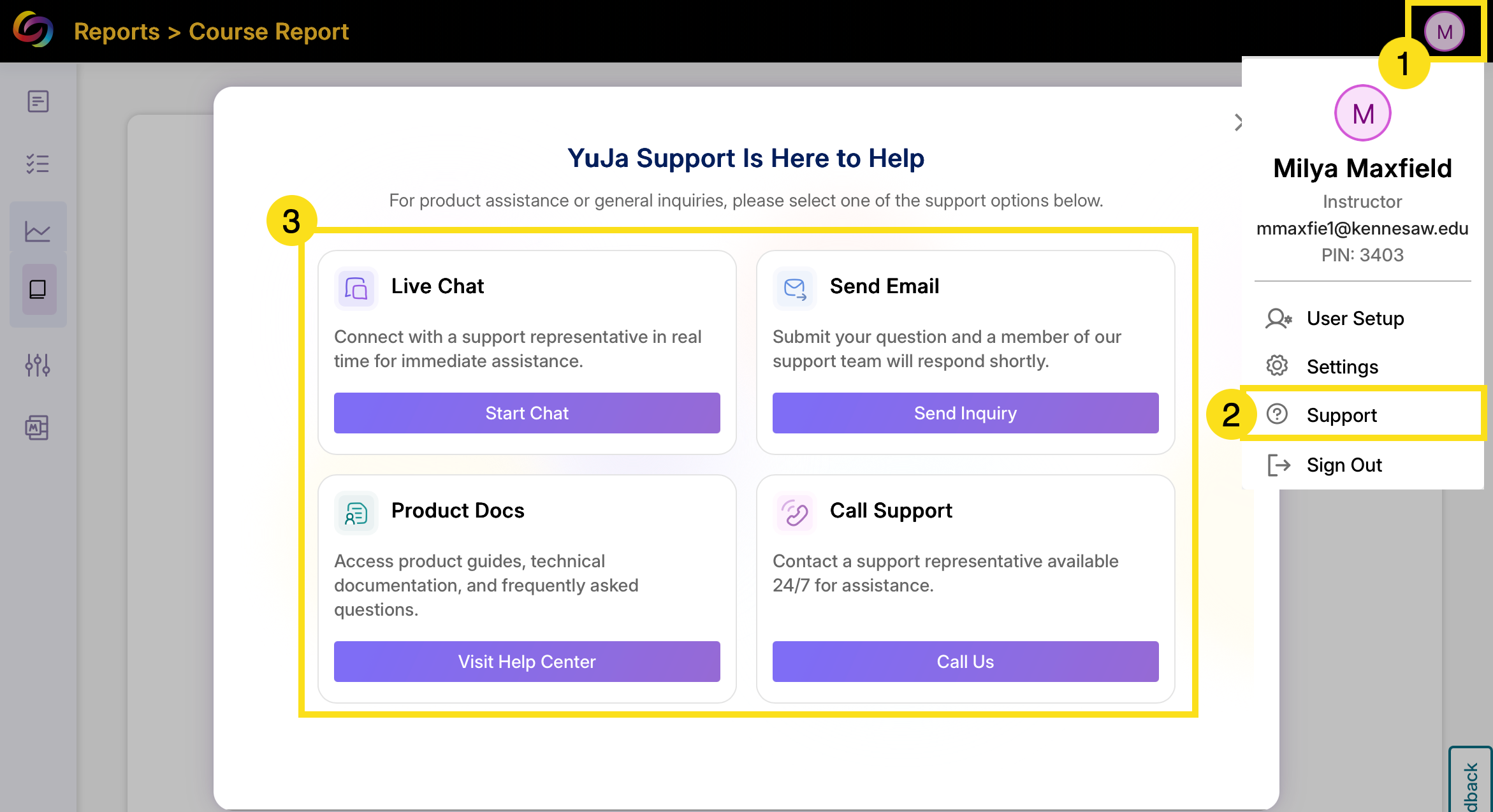
From your course report screen,
Click the rounded oval with your initials in the top-right corner of the screen.
A drop-down menu will appear. Click the Support option.
A new window titled Yuja Support is Here to Help will open. Click one of the four buttons to access the Live Chat, Email, Product Doc or Call options for help.