Document Accessibility Reports and Remediation Guidance for KSU Staff

On February 2, 2025, Kennesaw State will be implementing a new accessibility tool that is integrated into our LMS, D2L Brightspace, called YuJa Panorama.  This tool allows faculty and students to produce accessible alternative formats of course documents.  It also provides accessibility reports for faculty and guidance on remediating documents for accessibility.

This functionality is also available to KSU staff and is ready now!  Digital Learning Innovations is working on providing more detailed guidance and documentation on how to best use this powerful new tool.  In the meantime, KSU faculty and staff can use the button below to access the DocHub and watch a brief video that demonstrates how to get started!

Using the Panorama DocHub

The Panorama DocHub is your one-stop shop for reviewing and remediating your content for accessibility. Use this quick-start guide to begin exploring the powerful functionality of this new tool!

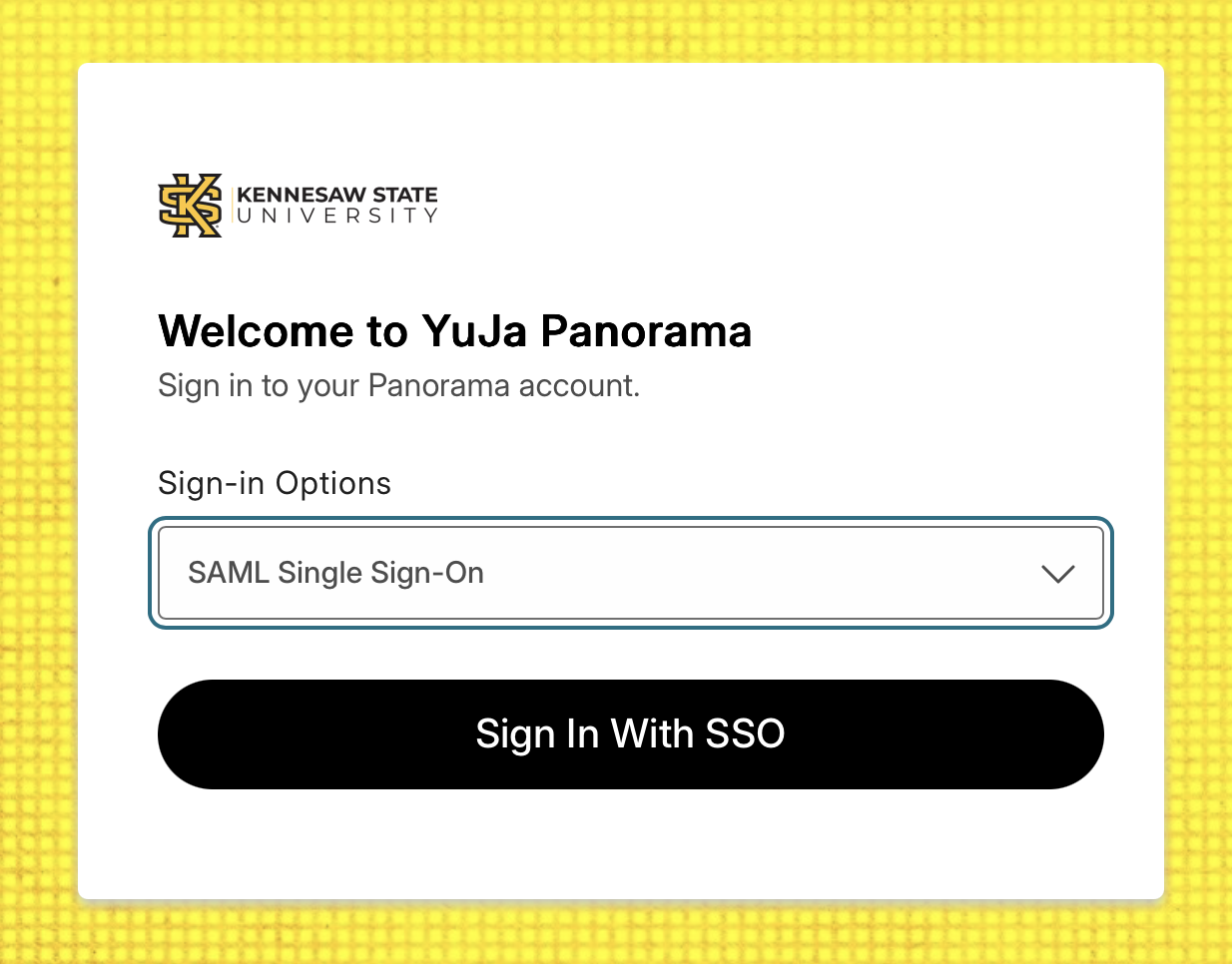
Click the Sign in with SSO button

Getting Started

  1. Navigate to Panorama DocHub in your browser.
  2. Click the Sign in with SSO button.
  3. If prompted, log in using your KSU Net ID and password.

Uploading Documents

  1. Once logged in, hover over the main menu on the left of the screen and click the DocHub item at the top of the menu.
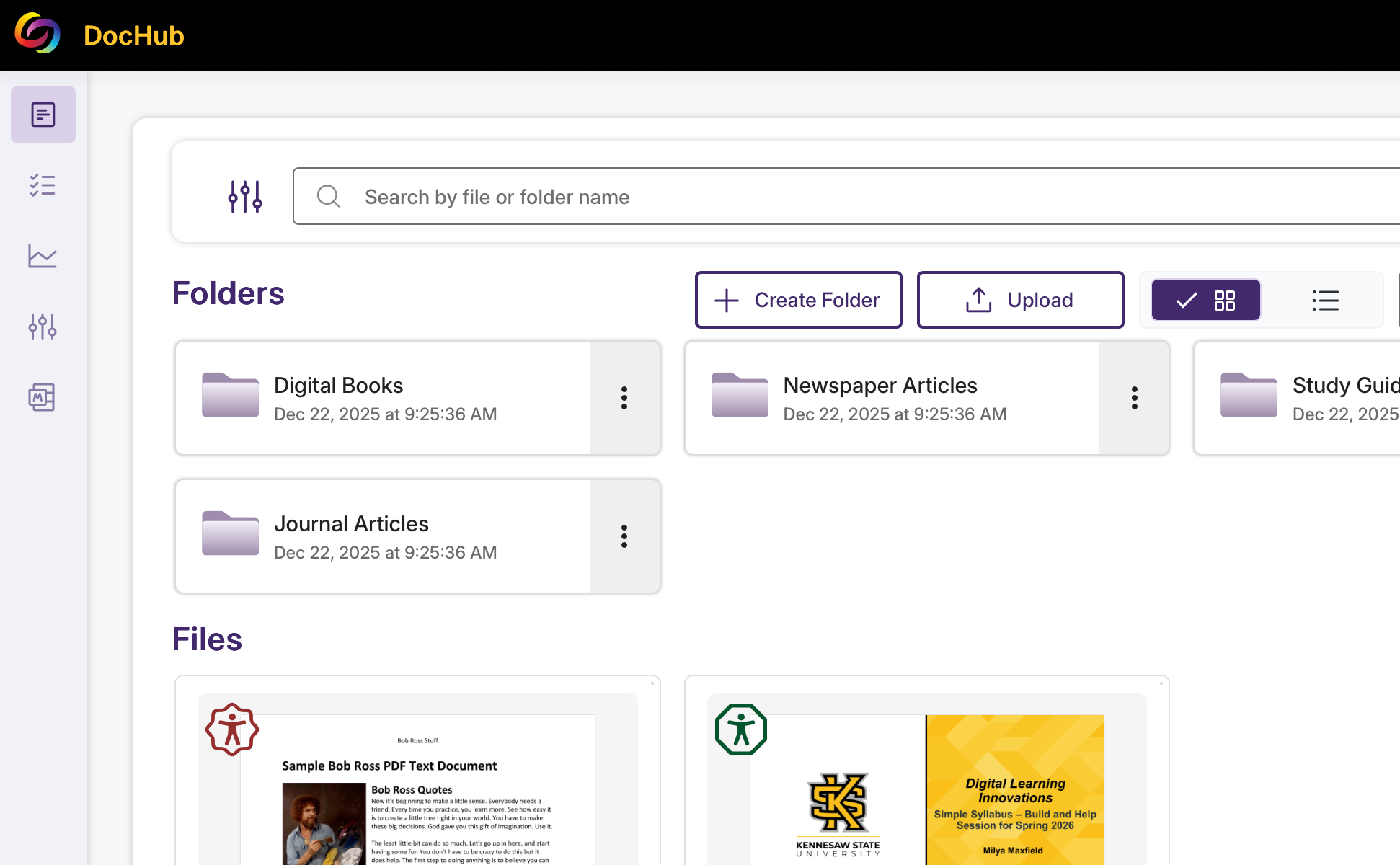
  2. Your DocHub document library will load. Click the Upload button and navigate to the content within your file finder.
  3. Click the Upload button to finish adding the document.
  4. Your file will now appear in your document library. It may take a few minutes for the file to be processed and the accessibility icon to appear.
Use the Upload button to upload content to the DocHub library
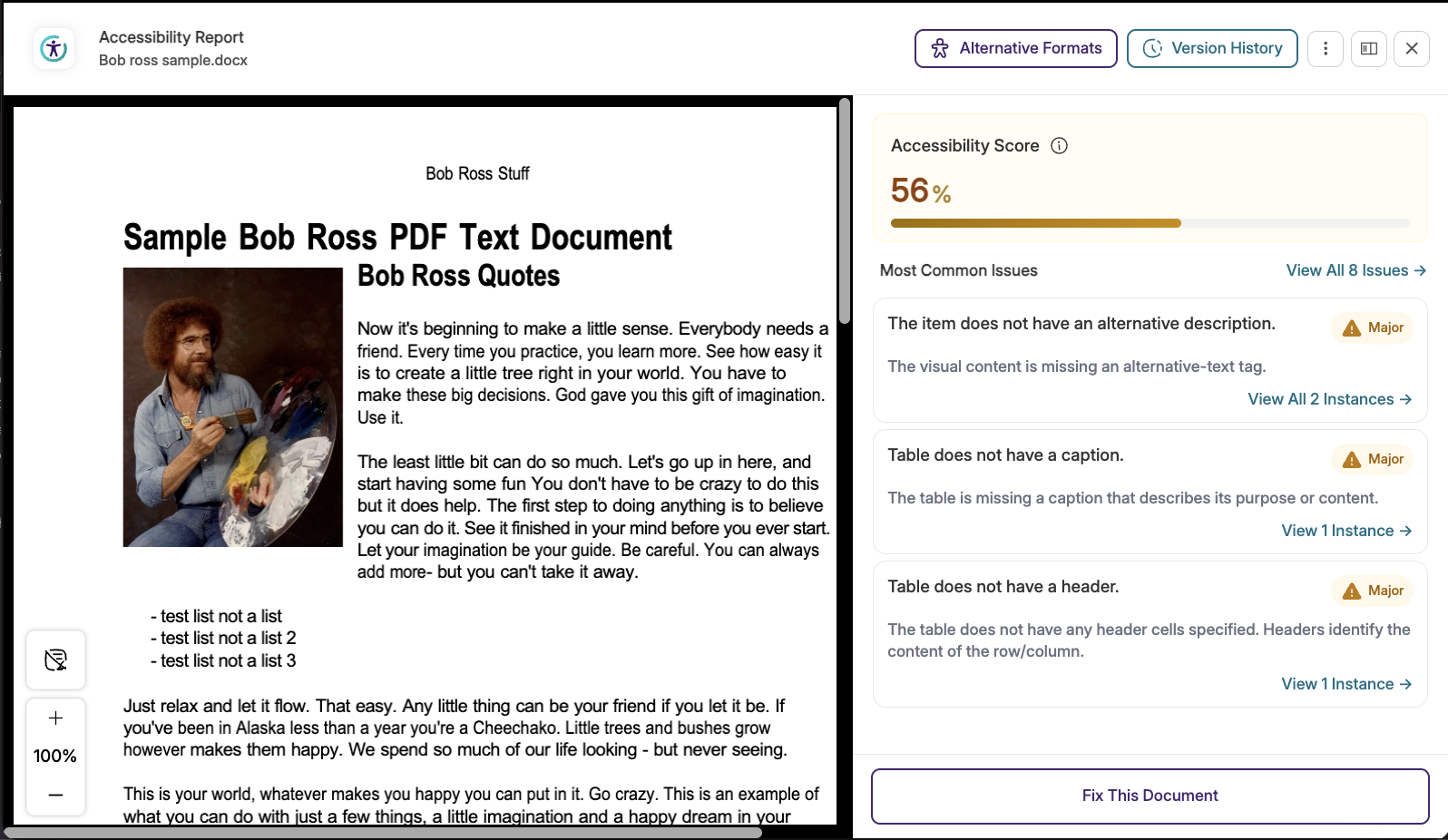
Click the Accessibility Report to view issues with content

Viewing the Accessibility Report

  1. From your DocHub document library, click the item you want to review. 
  2. The Alternative Formats Menu will open. Click the Accessibility Report button.

Decoding the Icons

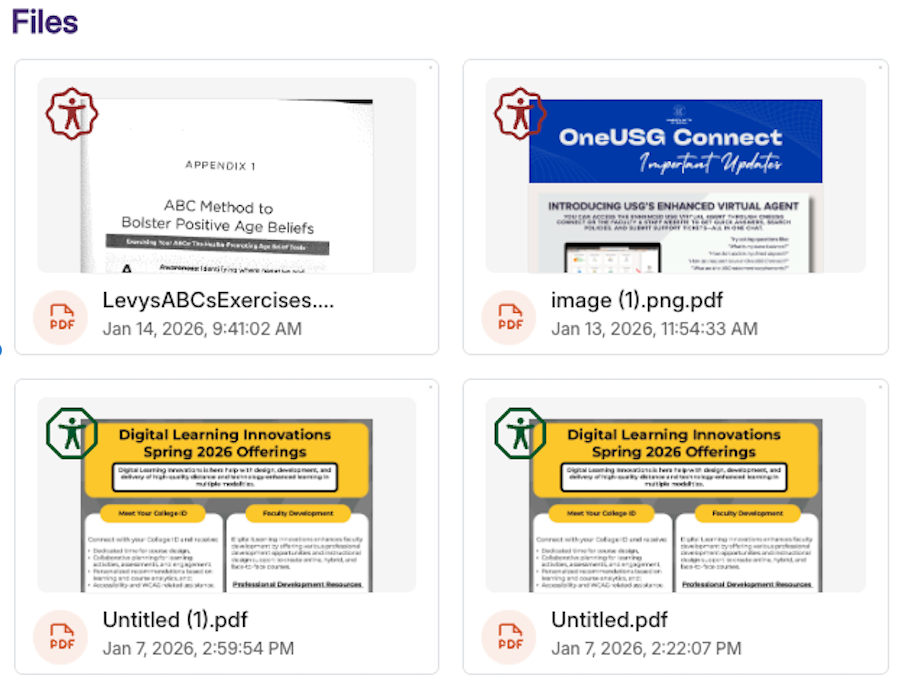
The indicators offer a quick glance at content most in need of remediation.  The colors and shapes of the indicators are based on a score Panorama gives the content using AI:

  • Blue circle icon: Accessibility icon (Student View)
  • Dark Green octagon icon: Very high accessibility scores
  • Green hexagon icon: High accessibility scores
  • Yellow triangle icon:  Medium accessibility scores
  • Red hexagon icon: Low accessibility scores
  • Red rounded hexagon icon: Very low accessibility scores
  • Grey prohibition icon: Your institution has disabled the alternative formats for this document
  • Purple circle icon: The file is being processed for accessibility

Note: Remember that the Panorama color-coded gauge as an indicator of the number and type of issues that Panorama detects, rather than a “passing score.” 

panorama icons in dochub
Remediation Menu in DocHub

Remediating Your Content

Once you've clicked the Accessibility Report for your document, the document will populate on one side and the report on the other.

The report will detail minor, major, and severe accessibility issues, as well as provide options and instructions for remediation. 

The specific steps for remediation will depend on the issues present in the document. In some cases, you will be able to make the changes directly within Panorama; for more severe issues, you may be prompted to make the fixes externally. 

Remember that, when you are finished with remediation, you will still need to download the revised document and add it to your webpage.

Exporting the Revised Document

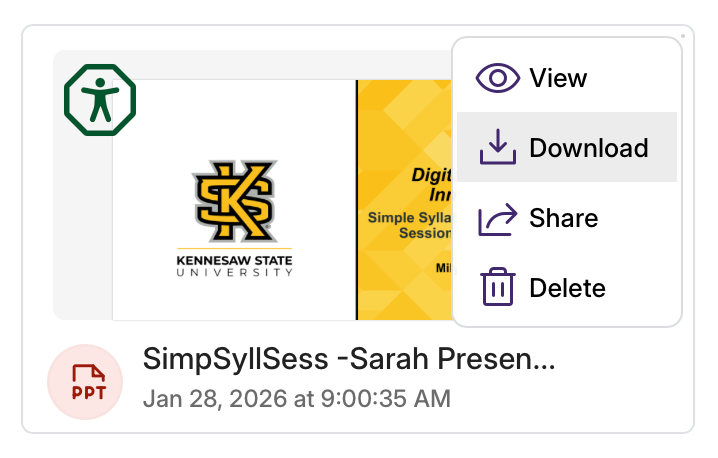
  1. From the DocHub Library, hover over the item you want to export.
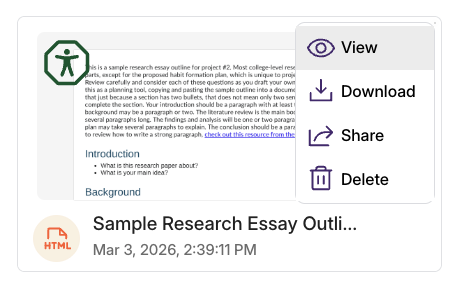
  2. A dropdown menu will appear. Click the Download option.
Export menu in DocHub

Need more help?

Access Yuja Help

Access Panorama Help 24/7

If you need help outside of our regular business hours, or if you have a very specific question about a specific document, you can also access Panorama's help tool anytime to live chat, call, or email a representative:

From your dochub screen,

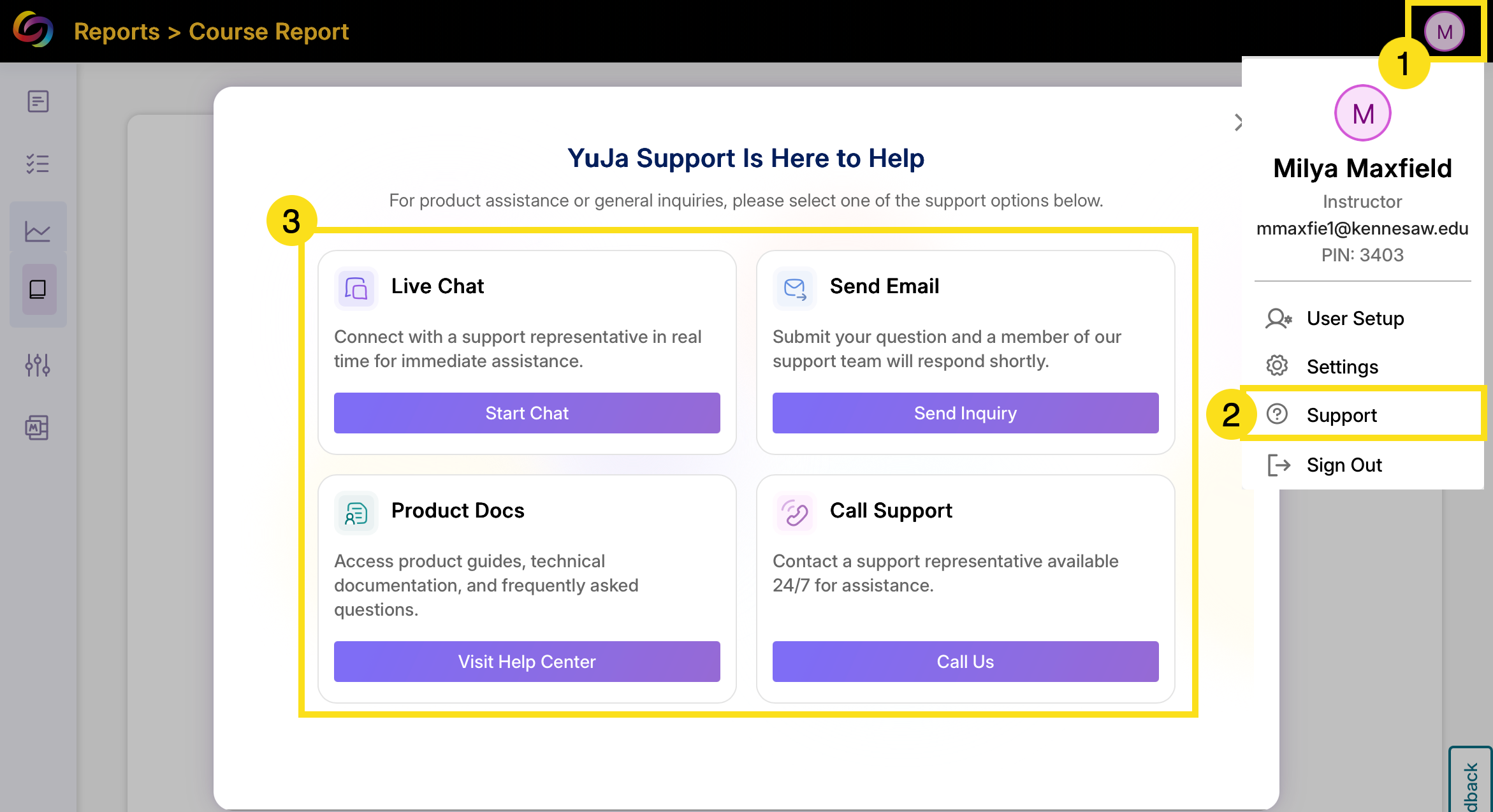
  1. Click the rounded oval with your initials in the top-right corner of the screen.
  2. A drop-down menu will appear. Click the Support option.
  3. A new window titled Yuja Support is Here to Help will open. Click one of the four buttons to access the Live Chat, Email, Product Doc or Call options for help.