


University Libraries

How to Use the Sturgis Library Scanners
- Log in with your NetID and password.
- Load your documents into the scanner.
- Using the Scanning Bed: Place paper face down in the scanning bed.
- Using the Scanner Feeder: Make sure that the document output tray cover is up and documents are face up.
- Open the HP Scan application on the desktop.

- Select the file format that you'd like to save the document as or where you'd like
to send the page (email or cloud).
- Recommended Scan Shortcuts Options: Save as PDF or Save as JPEG.
- Email as PDF and Email as JPEG will open the outlook desktop application. You will be prompted to log in and set up Outlook.
- Verify scanner settings and make adjustments as needed.
- Item Type: Items can be saved as a document or photo.
- Page Size: can be custom set or auto detected.
- Page Sides: Make sure to change the page sides option to 1- sided if document(s) are not double sided.
- Image Color Mode: Select color, black and white or greyscale.
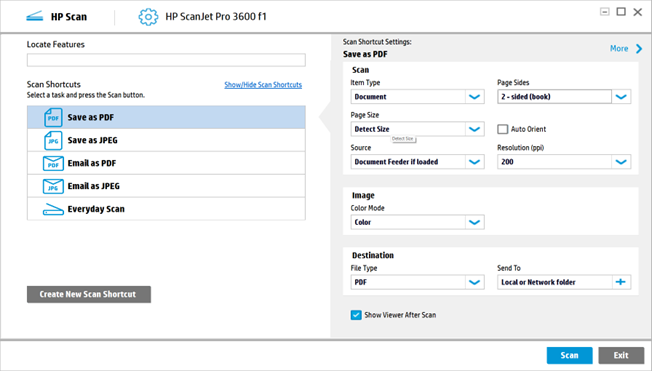
- Click on the Scan button to scan the document(s).
- Scan Preview: Adjustments can be made to the page's exposure and orientation if needed.
- Buttons on the bottom left can be used to either scan a new page or delete a page
from the scan preview window.
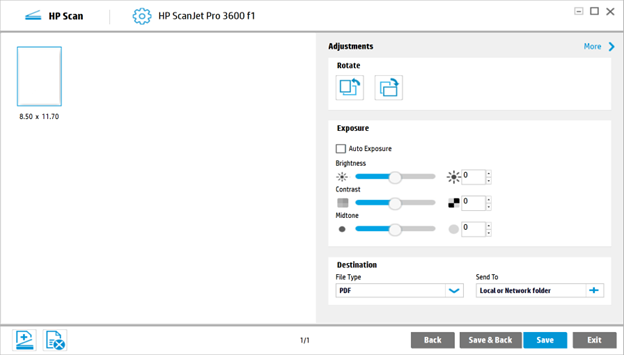
- Buttons on the bottom left can be used to either scan a new page or delete a page
from the scan preview window.
- Click Save
- Files can be saved onto the Desktop but the default location is the Documents folder.
- Once the file box pops up, press Save again.
- Email documents to yourself, upload them to your cloud storage (ex. OneDrive or Google Drive) or save them on a flashdrive before logging out of the computer.
To View Scanned Documents: To open a scanned document, you must log in with your Adobe Creative Cloud credentials or open the document with a web browser (ex. Firefox).