|
Using SmartSpeaker in D2L
Using the SmartSpeaker Menu in D2L
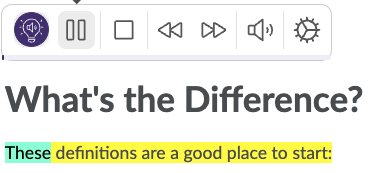
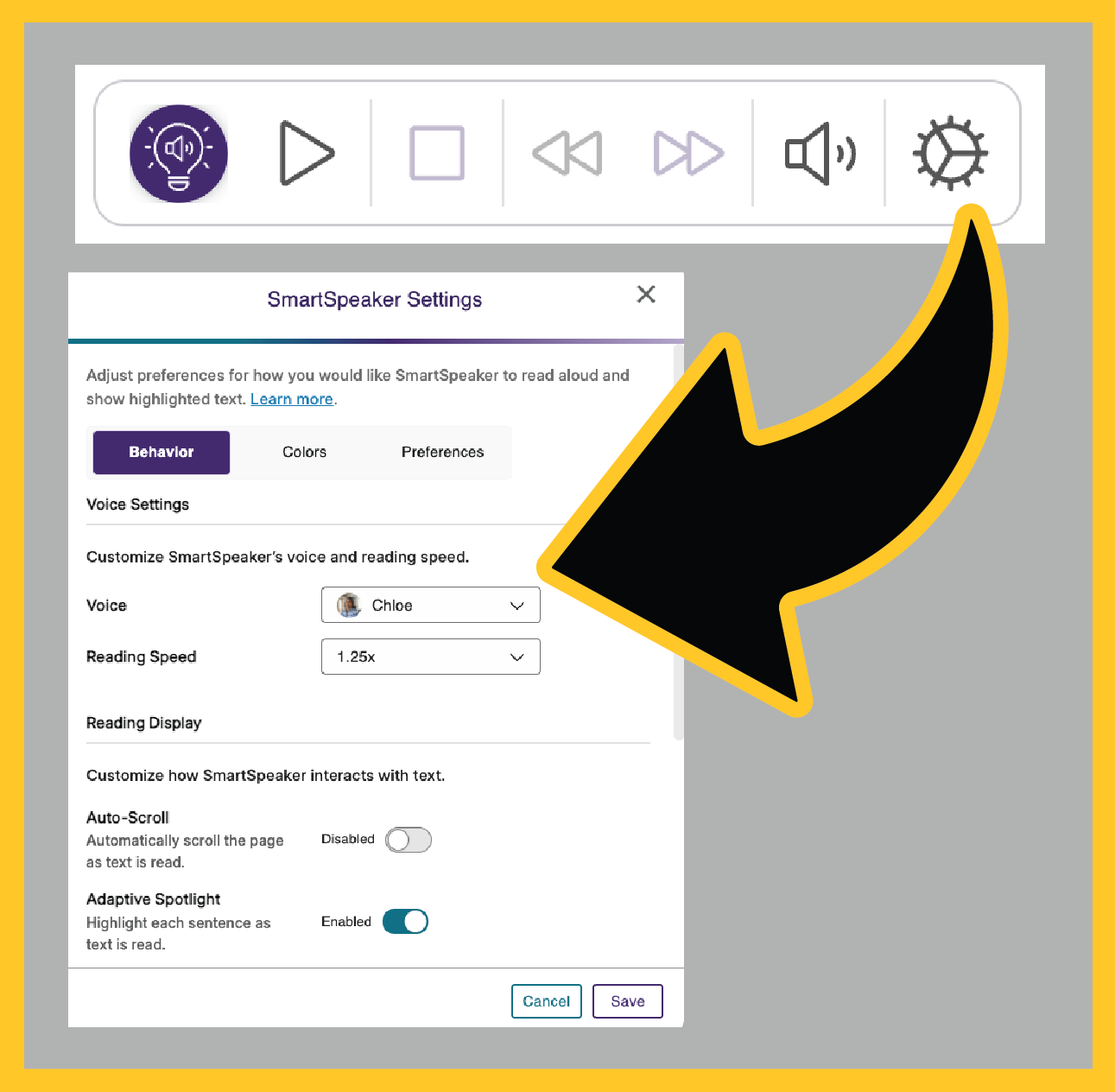
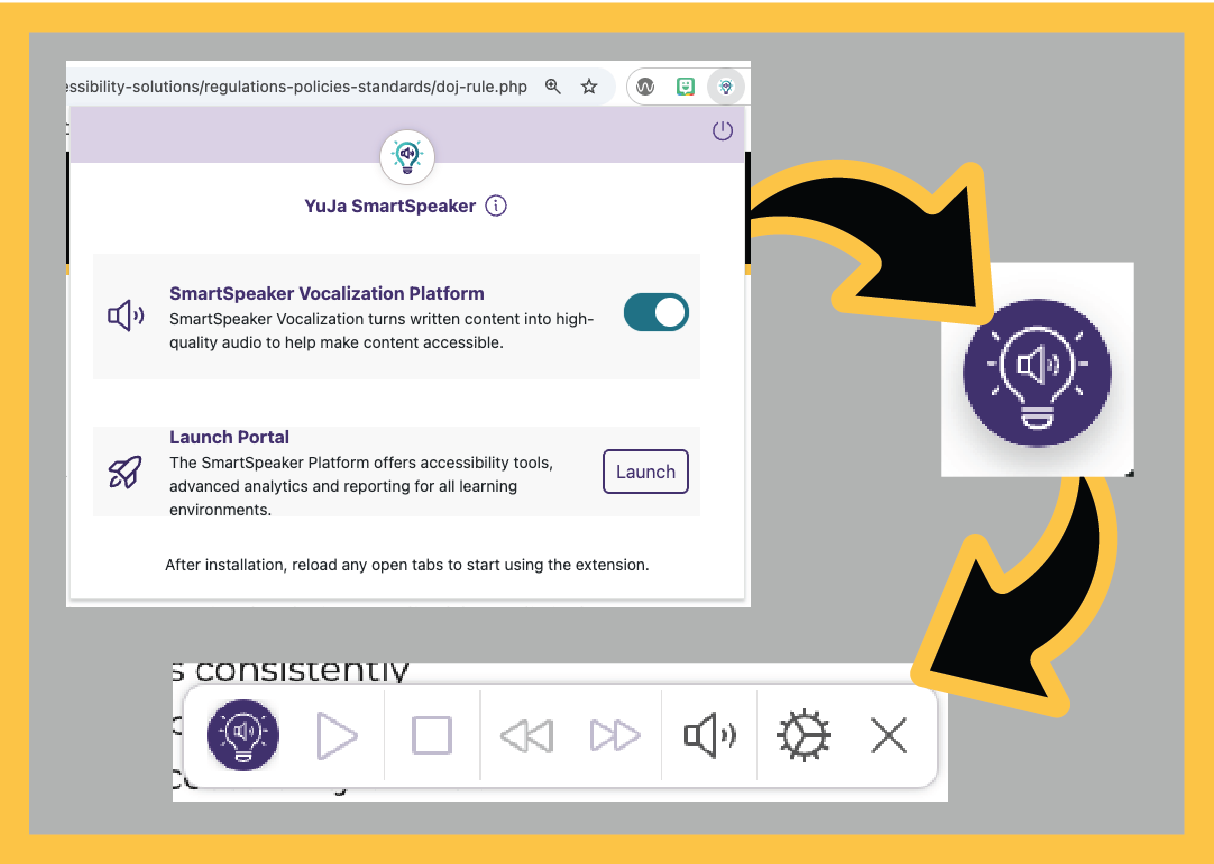
When you see the SmartSpeaker interface hovering over any HTML content, the controls
will allow you to:
- Once clicked, the triangle Play button will read the content aloud.
- Once the content is playing, the square Stop button becomes a Pause button.
- The Rewind 5 seconds and Forward 5 seconds buttons (once toggled on under settings) allow you to review or scan through content.
- The Volume button allows you to set the volume to your preference.
- The Settings button opens multiple settings options including voice options, speed, autoscroll,
and more.
|
Adding & Using the SmartSpeaker Browser Extension
|
To use SmartSpeaker to read external websites, you must first add the SmartSpeaker browser extension. To add it, go to the SmartSpeaker homepage.
SmartSpeaker Home Page
|
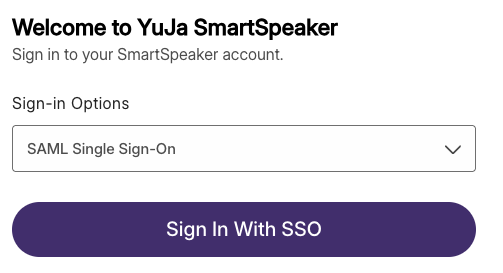
- Click the Sign in with SSO button.
- If prompted, log in using your KSU Net ID and password.
|
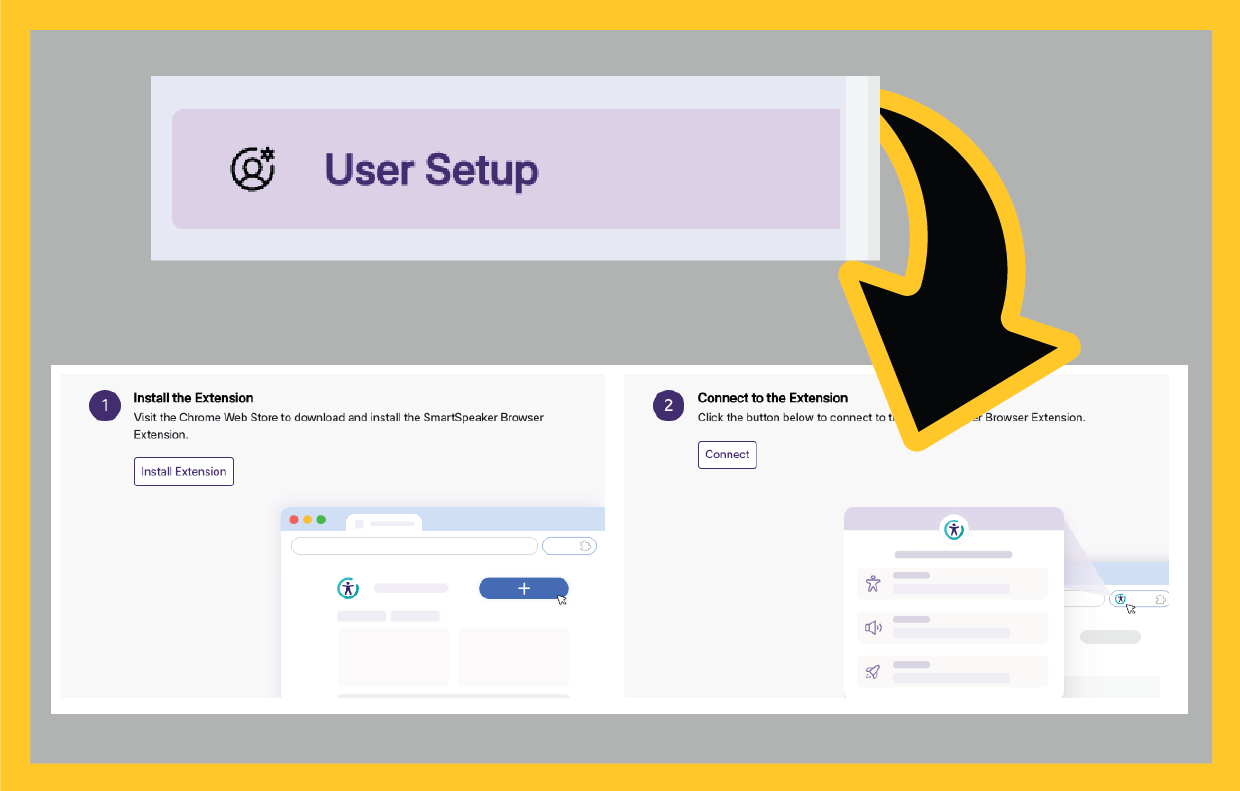
- Locate and click User Setup in the navbar on the left.
- Click Install Extension.
- Then click Connect to connect the extension to your SmartSpeaker account
|
To begin using SmartSpeaker,
- Navigate to a website and click the SmartSpeaker extension in your browser's extension bar.
- Toggle the SmartSpeaker Vocalization Platform on.
- The SmartSpeaker tool will appear on the bottom right of the page. Click the menu to open the SmartSpeaker interface.
- Highlight any text you want it to read and click the Play button.
The Power symbol in the top-right of the SmartSpeaker extension will sign you out of SmartSpeaker. It is not necessary to sign out, but if you do sign out and need to sign back in, go back to the SmartSpeaker home page and click Connect.
|
|
|